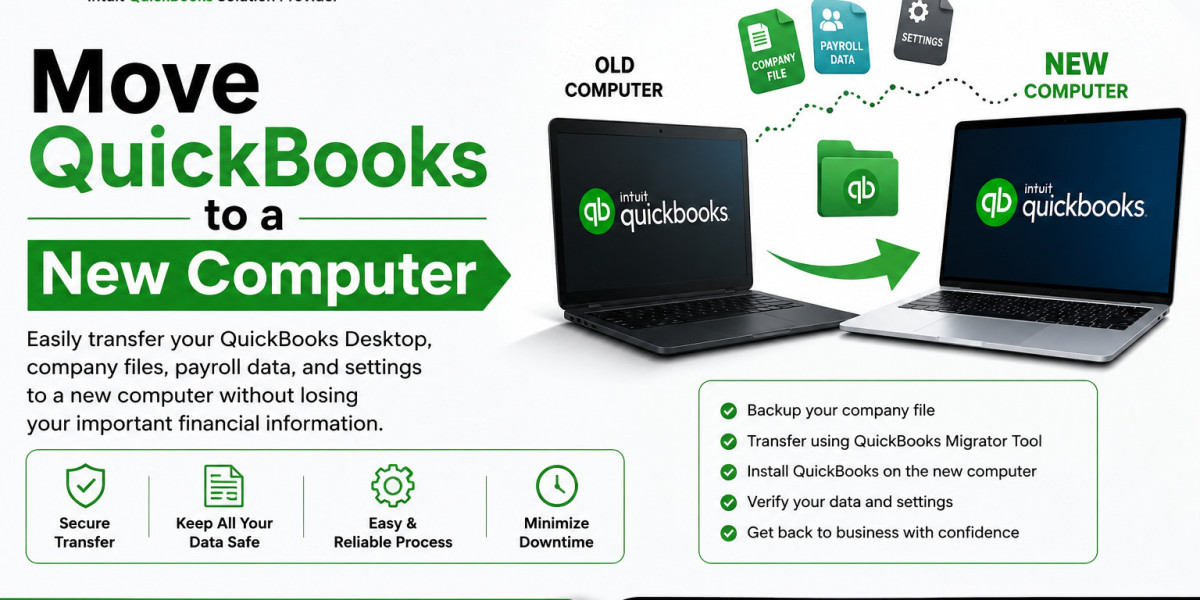

Upgrading your computer can improve performance, security, and productivity. However, if your business relies on QuickBooks Desktop, transferring the software and company data correctly is essential to avoid disruptions. Whether you're replacing an old system or setting up a new workstation, learning how to Move QuickBooks to a New Computer ensures that your accounting records, payroll information, and financial reports remain accessible and secure.
Why Move QuickBooks to a New Computer?
There are several reasons why businesses decide to move QuickBooks to another system:
Upgrading to newer hardware
Replacing a damaged computer
Improving system performance
Migrating to a remote work setup
Enhancing security and storage capacity
Upgrading operating systems
Regardless of the reason, a proper migration process helps prevent data loss and minimizes downtime.
What to Do Before Moving QuickBooks
Preparation is crucial when transferring accounting software.
1. Verify Your QuickBooks Version
Before starting, identify the QuickBooks version installed on your current computer.
To check:
Open QuickBooks Desktop.
Press F2 on your keyboard.
Note your product version and release information.
You'll need this information when installing QuickBooks on the new computer.
2. Locate Your License Information
Ensure you have:
License Number
Product Number
Intuit account credentials
These details are required for activation after installation.
3. Create a Company File Backup
Always back up your QuickBooks data before migration.
Steps:
Open QuickBooks.
Select File.
Choose Back Up Company.
Click Create Local Backup.
Save the backup file to a secure location.
A backup protects your accounting records if any issues occur during the transfer process.
4. Update QuickBooks
Install all available updates before moving QuickBooks to a new computer.
Benefits include:
Better compatibility
Improved security
Reduced migration errors
Method 1: Use the QuickBooks Migrator Tool
The QuickBooks Migrator Tool is the easiest and most recommended way to transfer QuickBooks.
Step 1: Open QuickBooks on the Old Computer
Launch QuickBooks Desktop.
Navigate to:
File > Utilities > Move QuickBooks to Another Computer
Step 2: Create a One-Time Password
QuickBooks will generate a one-time password.
Write it down because you'll need it later.
Step 3: Insert a USB Drive
Connect a USB flash drive with enough available storage.
The Migrator Tool will automatically copy migration files to the USB drive.
Step 4: Install QuickBooks on the New Computer
Download and install the same QuickBooks version on the new machine.
Do not open your company file yet.
Step 5: Run the Migrator Tool
Insert the USB drive into the new computer.
Launch the Migrator Tool and enter the one-time password.
The tool will transfer:
Company files
Templates
Preferences
Letters
Images
Once completed, restart QuickBooks.
Method 2: Manually Move QuickBooks to a New Computer
If the Migrator Tool isn't available, you can transfer QuickBooks manually.
Step 1: Install QuickBooks Desktop
Download and install QuickBooks using your license and product information.
Step 2: Activate QuickBooks
Sign in with your Intuit account and activate the software.
Step 3: Copy Company Files
Locate your QuickBooks company file.
Common file extensions include:
.QBW (Company File)
.QBB (Backup File)
.QBM (Portable Company File)
Copy the files to:
USB drive
External hard drive
Cloud storage
Transfer them to the new computer.
Step 4: Restore or Open the Company File
Launch QuickBooks.
Select:
File > Open or Restore Company
Browse to the transferred file and open it.
Verify that all data appears correctly.
Important Files to Transfer
Many users focus only on the company file and forget other important QuickBooks components.
You should also transfer:
Custom invoice templates
Payroll information
Memorized reports
Letters and forms
Logos and images
User settings
Ensuring these files move successfully helps maintain workflow continuity.
What Happens to Payroll After Migration?
Payroll users should take additional precautions.
After you move QuickBooks to a new computer:
Verify payroll subscription status
Confirm payroll service keys
Install the latest payroll tax table
Test payroll calculations
In some cases, payroll services may require reactivation.
Failing to verify payroll settings can result in payroll update errors or inaccurate calculations.
Common Issues After Moving QuickBooks
While most migrations proceed smoothly, some users encounter problems after transferring QuickBooks.
QuickBooks Won't Open Company File
Possible causes include:
Damaged company files
Incorrect file locations
Incomplete file transfer
Verify the company file was copied successfully.
Missing Templates or Reports
Custom templates and memorized reports may not transfer automatically.
Review your templates after migration and copy any missing files manually.
Payroll Update Errors
Many users experience payroll update issues after migration.
Common reasons include:
Missing payroll service keys
Inactive payroll subscription
Firewall restrictions
Outdated QuickBooks version
Updating payroll settings typically resolves the issue.
Multi-User Mode Problems
Businesses using QuickBooks in a network environment may need to:
Reconfigure hosting settings
Adjust firewall permissions
Verify network access
Testing multi-user functionality immediately after migration is recommended.
Best Practices for a Successful Migration
Following these recommendations can help ensure a smooth transfer.
Keep the Old Computer Available
Do not remove QuickBooks from the old computer until you've verified that everything works correctly on the new system.
Verify Data Integrity
Run:
File > Utilities > Verify Data
before creating backups.
This helps identify potential data issues before migration.
Test Key Functions
After moving QuickBooks, test:
Reports
Payroll
Banking functions
Invoice creation
Customer records
Confirm everything functions normally before relying on the new system.
Create Multiple Backups
Store backups in more than one location, such as:
External drives
Cloud storage
Secure network folders
Multiple backups provide extra protection against data loss.
Benefits of Moving QuickBooks to a New Computer
A successful QuickBooks migration offers several advantages.
Improved Performance
Newer hardware typically processes reports and transactions faster.
Better Security
Updated systems provide stronger protection against cyber threats.
Enhanced Reliability
Modern computers reduce the risk of hardware-related failures.
Improved Compatibility
New systems often support the latest QuickBooks updates and features.
When Should You Seek Professional Help?
Consider professional assistance if:
Company files are damaged
Payroll data won't transfer
Multi-user setups are complex
Activation issues occur
Data appears missing after migration
Expert guidance can help prevent downtime and protect critical financial information.
Frequently Asked Questions
Can I move QuickBooks to a new computer without losing data?
Yes. Creating a complete backup before migration helps ensure your data remains safe during the transfer process.
What is the QuickBooks Migrator Tool?
The QuickBooks Migrator Tool is a utility that transfers QuickBooks files, settings, and preferences from one computer to another.
Do I need my QuickBooks license number?
Yes. You'll need your license and product numbers to install and activate QuickBooks on the new computer.
Will payroll transfer automatically?
Most payroll data transfers successfully, but you may need to verify payroll subscriptions and service keys afterward.
Can I keep QuickBooks on both computers?
This depends on your QuickBooks license agreement. Review Intuit's licensing terms before using QuickBooks on multiple devices.
How long does it take to move QuickBooks to a new computer?
The process typically takes between 30 minutes and a few hours, depending on the size of your company files and system configuration.
Conclusion
Knowing how to Move QuickBooks to a New Computer is essential for businesses upgrading hardware or replacing aging systems. By backing up your company files, using the QuickBooks Migrator Tool, verifying payroll settings, and testing key functions after migration, you can transfer QuickBooks safely and efficiently.